How to protect a document link with a password and expiration date
By DeckPeek
A password adds a step before someone can open your document. An expiration date sets when the link stops allowing access. In DeckPeek, both settings belong to the individual share link and are available on every plan.
You can use them together for a time-limited review, such as a proposal that a partner needs to read this week. Other links to the same document can have different settings.
Set the password and access deadline
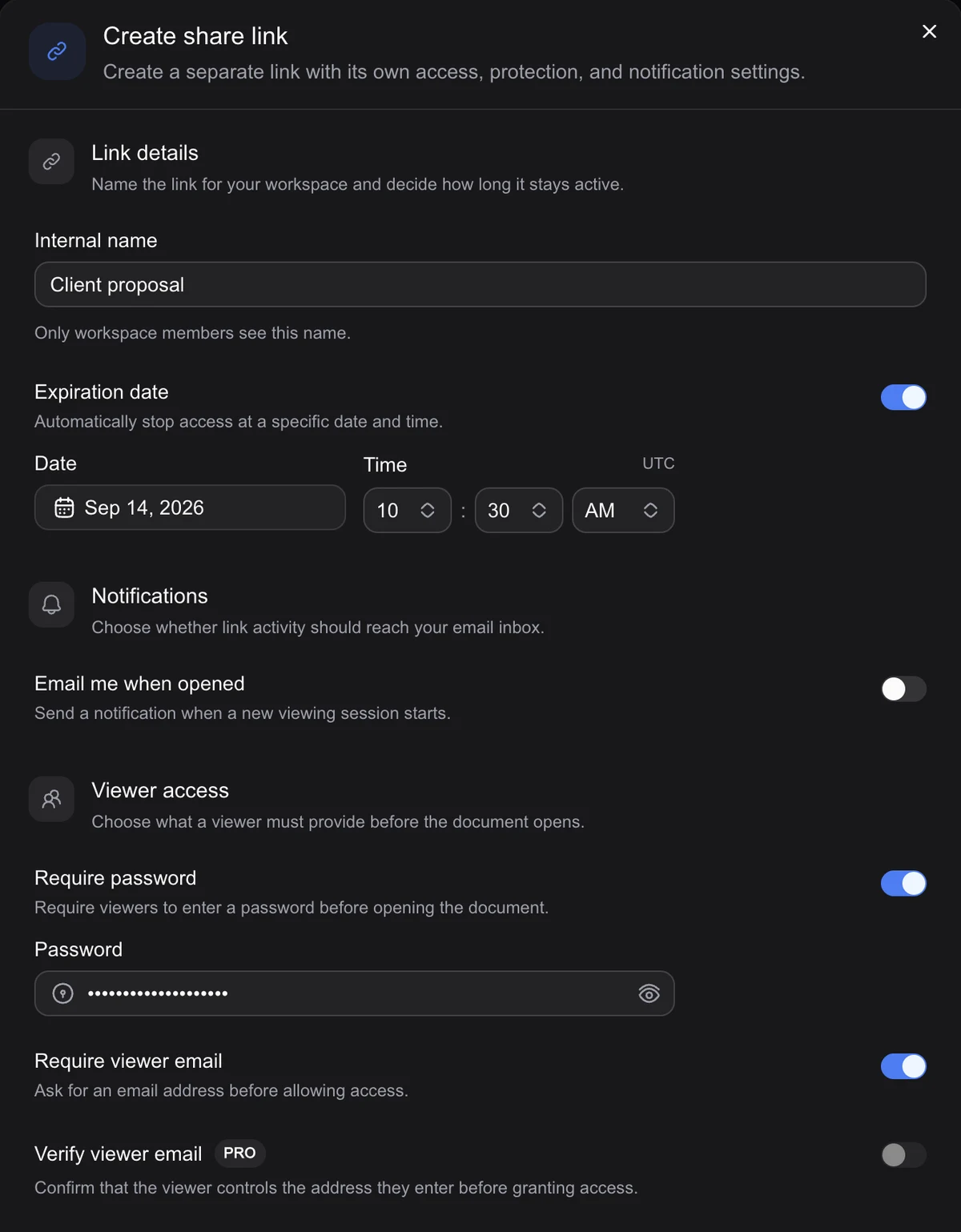
Upload your document and wait for its preview to be ready, then create a share link. For a link you already sent, open Edit link settings. Updating those settings changes that link’s access rules without requiring a new URL.
Give the link a useful name
Enter an Internal name that identifies the review, such as “Partner review — September.” Only workspace members see it, so use a name that helps you find the link later.
Turn on Require password
Enter the password viewers should use to open this link.
Turn on Expiration date
Choose a future date and time. Check the time zone shown with the expiration settings so the access deadline matches what you tell the recipient.
Save and share
Select Create link for a new link or Save settings for an existing one. Send the URL and explain the review deadline. Provide the password separately when that fits your sharing process.
Check the recipient experience before sending
Review the link’s settings and recipient preview. The recipient should encounter the access steps you selected and then the intended document. Check the date, time, and password carefully; an access problem can look like an unanswered proposal when the reader simply cannot get in.
If the review is likely to involve several people, decide how they will receive the password and whether the deadline gives them enough time. A password can be forwarded along with the URL, so it does not restrict access to a named person by itself.
Change or stop access after sending
Open Edit link settings to update the password or expiration. When a password is already set, leaving the optional new-password field blank keeps it. Enter a new password to replace it, or switch off Require password to remove that requirement when you save.
If the review ends early, use Revoke link to stop access through that URL. This applies to the chosen link, so other active links to the document keep their own rules. Review those separately if the whole document should no longer be available.
Add controls for the audience you have
Require viewer email asks a visitor to provide an address. Pro also offers email verification and access lists for allowed or blocked email addresses and domains. Verification checks access to an inbox at that time; a self-reported address alone does not do that.
Show download button controls the convenient download action in the viewer. Hiding it does not make visible content impossible to copy. An authorized viewer may still retain or capture material, and revoking or expiring a link cannot recall a copy they already saved.
For supported formats, plan details, and individual settings, visit the DeckPeek help center.