Connect DeckPeek to your AI assistant
By DeckPeek
You can bring DeckPeek documents, sharing controls, and recorded viewer activity into a conversation with your AI assistant. MCP, the Model Context Protocol, is the connection between the assistant and your DeckPeek workspace. You keep using your assistant's app; DeckPeek provides the tools it can call.
MCP access is included with DeckPeek Pro and Business. ChatGPT's existing production connection is verified, and Claude sign-in has been verified. Claude's remaining tool, renewal, and revocation checks are pending. OpenCode and Grok account-level tests are pending. Provider plan requirements and organization policies also apply.
Start with your DeckPeek workspace
You need a DeckPeek account with access to a Pro or Business workspace and an assistant that accepts remote MCP servers with OAuth. A workspace is the shared place for your documents and teammates, not a separate login.
Open MCP in DeckPeek
Sign in to DeckPeek and open MCP in the dashboard sidebar. Check the workspace and plan shown on the page.
Copy the server URL
Use the copy button beside Server URL. The production endpoint is https://deckpeek.com/mcp. Use this endpoint, not a share-link URL or the dashboard page address.
Add the server to your assistant
Create a custom remote MCP connection in your assistant and paste the URL. Select OAuth authentication, then complete the DeckPeek sign-in and consent flow.
Review the requested access
Check the client name and requested permissions before selecting Connect. Authorize only the access you intend to give that assistant. Reject the request if the application or permissions are unexpected.
Connect in ChatGPT
In ChatGPT on the web, open Plugins and use the plus button to add a custom MCP server. Name it DeckPeek, enter https://deckpeek.com/mcp, and configure OAuth. Use dynamic client registration rather than supplying your own static client credentials. Review the warning, create the plugin, install it, and complete DeckPeek authorization when prompted.
Open a new chat and select DeckPeek with the @ menu. Ask it to list your documents as a first check. If custom MCP connections are unavailable, check your ChatGPT workspace's permissions and security restrictions.
Set up Claude or Grok
In Claude, go to Customize > Connectors, select Add custom connector, and enter DeckPeek's server URL. Keep OAuth sign-in enabled and choose Register automatically for the OAuth client, rather than Claude's published identity. DeckPeek currently uses automatic client registration. Complete authorization, then enable the connector for the conversation. For a team account, an organization owner may need to add the connector first.
In Grok, go to grok.com/connectors, choose New Connector > Custom, enter the server URL, and complete the required authentication. Grok Business and Enterprise organizations may require an administrator to provision the connector.
Claude sign-in has been verified. Its remaining tool, renewal, and revocation checks are pending; Grok's DeckPeek account connection is still pending. These custom connection instructions do not imply a directory listing or official partnership.
Connect in OpenCode V2
Add DeckPeek under mcp.servers in your opencode.jsonc configuration with type remote, URL https://deckpeek.com/mcp, and protocol auto. Set oauth.scope to deckpeek:read offline_access for renewable read-only access. Add deckpeek:write only for changes, and request deckpeek:admin separately for administrative tools.
Run opencode mcp auth deckpeek, or select DeckPeek through /mcps, and complete browser authorization. OpenCode documents OAuth discovery, automatic registration, PKCE, and renewal. Version 2.0.21 passed an isolated machine-token transport and tool-catalog check, but its normal configured-list workflow and live DeckPeek account sign-in remain unverified.
Upload from your assistant
Clients can prepare a DeckPeek upload session for a document, replacement version, logo, or social image. A capable client transfers file bytes through the returned authenticated endpoints; human connections also receive a DeckPeek upload-page link when the client cannot transfer local files. Existing ChatGPT attachment uploads continue to work.
Upload sessions last 30 minutes and belong to the initiating connection. They still require workspace access, available storage, and supported file types. Document replacements append a version to the selected document; branding changes require its current update timestamp. Document transfers require write permission; branding also requires administration. Service accounts transfer files programmatically rather than using a browser upload link.
Run a workspace automation
Workspace owners can create named service accounts on the MCP page. Each account belongs to one workspace and starts with read-only access. Owners explicitly grant write or administration permissions, and can change permissions, disable, rotate, or revoke the account. The client secret appears once and belongs in the automation's secret store.
Automations exchange their credentials for five-minute tokens. They request a new token when needed rather than using a refresh token, and omitted token permissions remain read-only. Activity identifies the service account. Rotation, permission changes, disabling, and revocation stop existing tokens and upload sessions; loss of workspace eligibility or ownership also stops execution.
Try a useful conversation
Start with a read-only request so you can see what the assistant finds before asking it to change anything. If you belong to one eligible workspace, DeckPeek can select it automatically. With several eligible workspaces, choose by name; you do not need to look up an internal workspace ID.
Find a deck and understand it
Try: "Find the Orbit pitch deck in my workspace and summarize the readable content, citing the page numbers." The assistant should use the actual document content and tell you when pages are unavailable.
Review recorded engagement
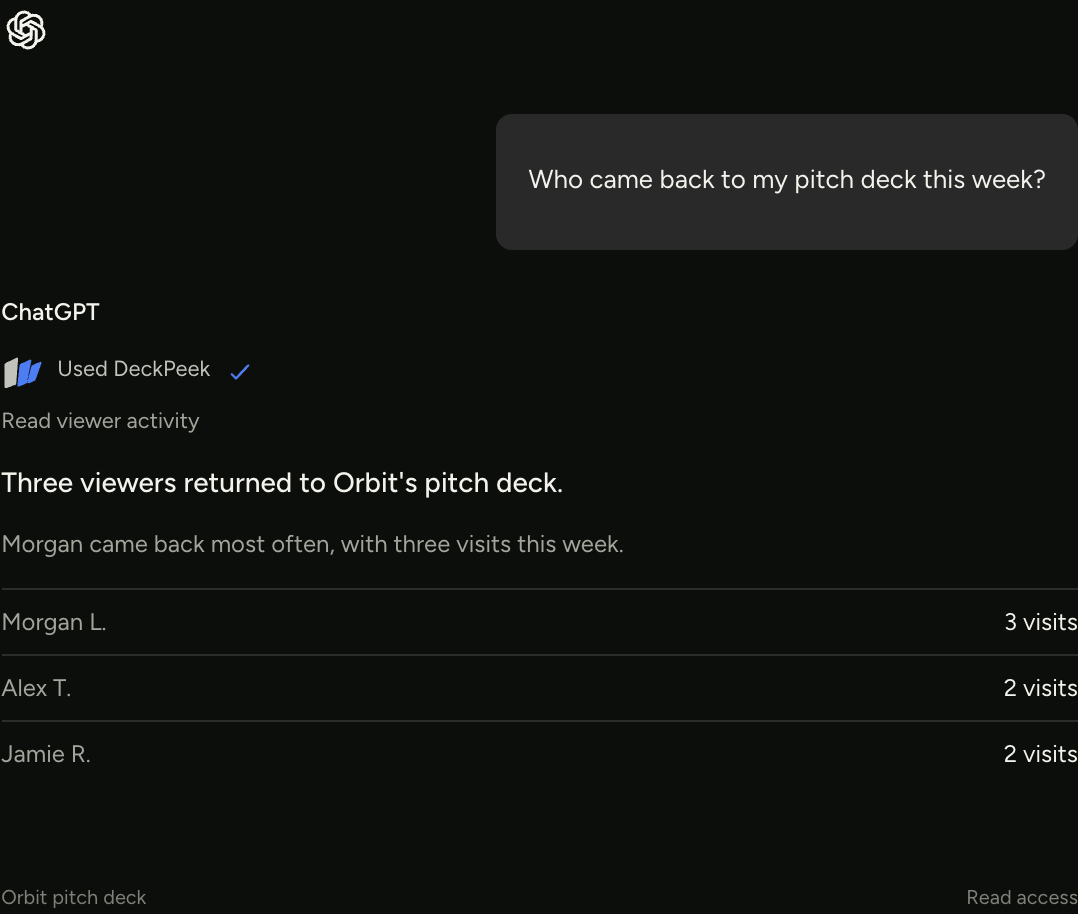
Try: "Who returned to the Orbit pitch deck in the last seven days? Show the links and recorded visits behind your summary." Activity can help you prepare a question; it does not prove an investor is interested.
Change one link setting
With write access, try: "Find the Orbit investor link, show me its current settings, then turn off downloads without changing the other settings." Check the selected link and result before relying on the change.
Save the next step for your team
Try: "Save a follow-up for Morgan on the Orbit pitch deck, assign it to me, and add a note to ask about the revenue model." This saves a task in DeckPeek; it does not automatically send an investor email.
The illustration below uses fictional names and activity to show one possible conversation, not your account's data or a guaranteed model response.
Know what you are authorizing
The connection's OAuth scopes limit what it can request. Read access lets it retrieve documents, links, rooms, activity, and saved follow-ups. Write access allows supported changes such as uploads, link settings, room edits, and follow-up collaboration. Administration is a separate permission for sensitive controls such as branding, custom domains, and webhook management. Workspace membership, your role, and the workspace's plan still apply to every request; a connection does not grant access to someone else's account.
Renewable human access requires the client to request offline_access during authorization. Without it, the five-minute access token expires without a refresh grant. Service accounts instead request new short-lived tokens with their stored credentials. Review permissions in DeckPeek's MCP page. Requests to delete content, grant access, weaken protection, or change administrative settings deserve explicit review before execution.
- Document reads can return actual PDF or converted Office page text, available image previews, or stored video captions. They do not create OCR or transcription for unavailable content.
- DeckPeek returns data to the connected assistant, including any content or viewer details its permitted tools retrieve. The assistant provider's own privacy and retention rules also apply.
- Check tool inputs and results. Document text, comments, and other retrieved material are source data, not instructions to override your request or share additional information.
- Data-room access, paid features, storage limits, and your existing workspace role are not bypassed through MCP.
Disconnect or fix a connection
To stop future access, open MCP in DeckPeek, find the client in Connections, and select Revoke. Remove the connection in the assistant as well if you no longer want it listed there. Revocation stops future authorized requests; it cannot remove information already returned to the assistant or copied into an existing conversation.
If setup fails, check the exact /mcp URL, OAuth authentication, your DeckPeek sign-in, and access to an eligible workspace. For Claude, confirm Register automatically is selected. If a write request is refused, review the connection's scopes and your workspace role rather than asking the assistant to bypass the restriction. The help center has the connection checklist and current limits.
For supported formats, plan details, and individual settings, visit the DeckPeek help center.